What this is for
If you cannot remember your password, you can reset it yourself from the sign-in screen - there is no need to contact support. CredPass emails you a secure, single-use link to set a new one and get back to running your centre.
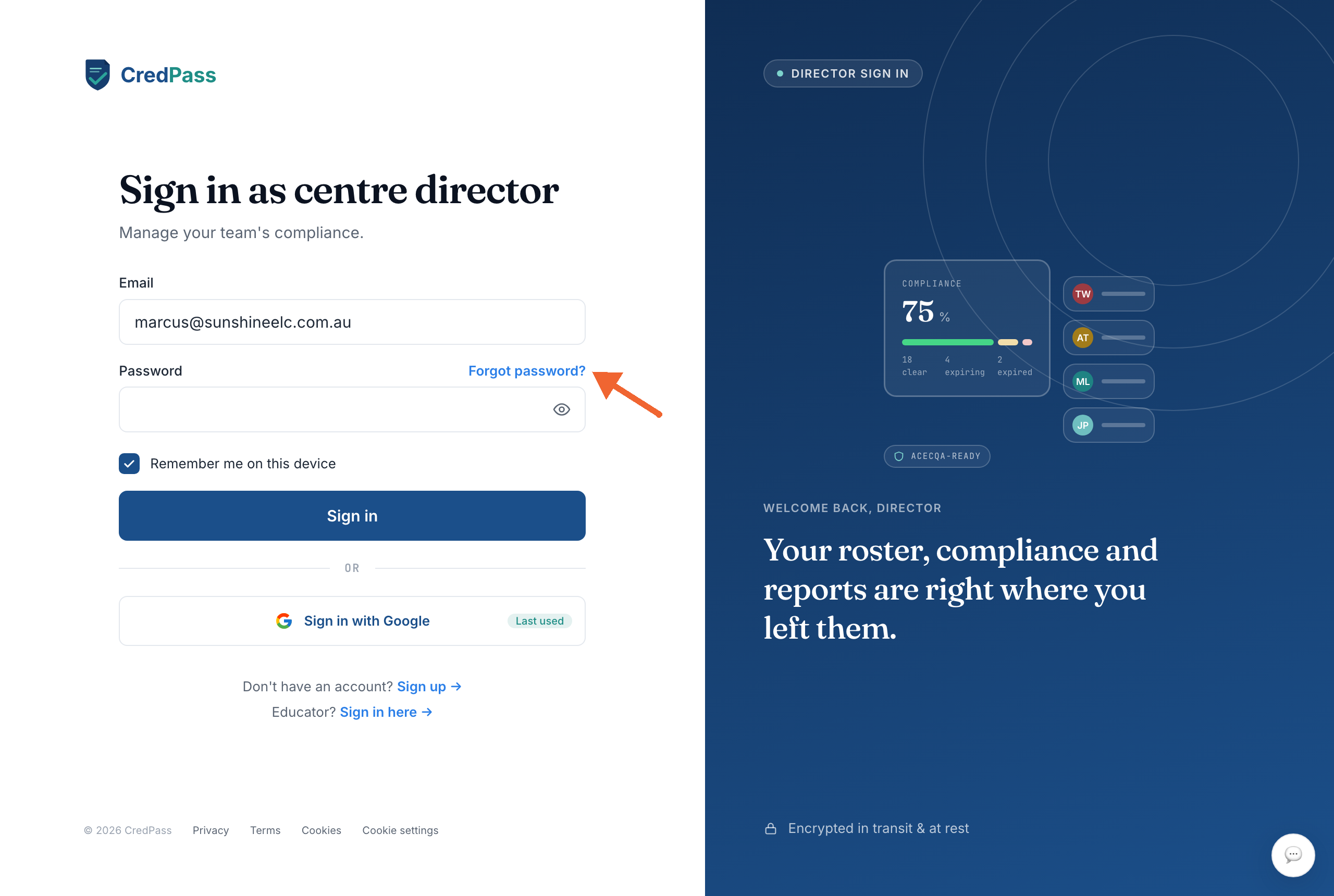
Step by step
- Go to the CredPass sign-in page and select Forgot password?, just above the password field.
- Type the email address you use for CredPass and submit. If an account exists for it, a reset email is on its way.
- Open the email from CredPass and follow the reset link. If it is not there within a few minutes, check your spam or junk folder.
- Set a new password and confirm it. The link is single-use and expires after a short time, so finish in one go.
- Sign in with your new password - you are back in your centre.
Good to know
The reset link is time-limited and can be used only once - if it expires, just request a new one from the same screen.
Signed up with Google? You do not have a CredPass password - use Sign in with Google on the sign-in screen instead.
For your security, resetting your password signs you out on your other devices.
Resetting your own password does not affect any educators or other staff at your centre.
Questions
I didn't get the reset email.
Check your spam or junk folder and make sure you used the email address on your CredPass account. The email usually arrives within a few minutes; if not, request the link again.
I signed up with Google - how do I sign in?
You don’t have a separate CredPass password. Use the Sign in with Google button on the sign-in screen.
Can I change my password while signed in?
Yes - open your account from Settings and update it there. A reset is only needed when you can’t sign in.